Volunteer training
Phone Banking for Mike
How to make calls from the i360 Grassroots app
What we'll cover
Three simple parts
1
Get set up
Same app and login as door knocking
2
Make calls
What to tap on every call
3
Get help
Who to call if you're stuck
Mike Minogue for Governor · i360 Call Training
Part 1 · Get set up
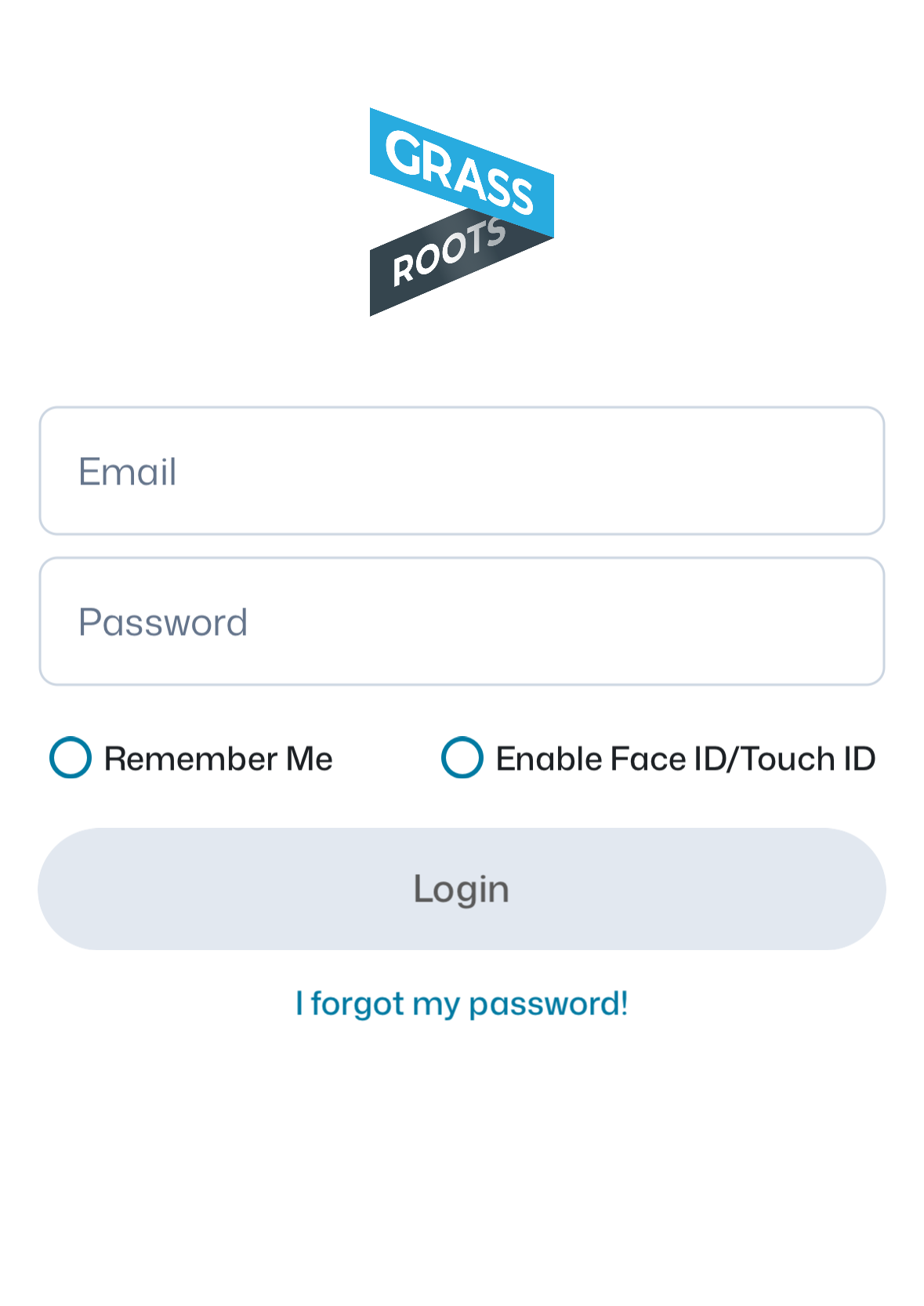
Get the app and log in
1
Download i360 Grassroots from the App Store or Google Play
2
No account yet? Contact your Regional Political Director (RPD) with your name, email, and town
3
Username: your email. Password: your RPD sends this to you when your account is ready
4
Tap Remember Me, then Login
Please use i360 Grassroots. The old i360 Call app is being retired. Already knock doors with Grassroots? You're all set.
Mike Minogue for Governor · i360 Call Training
Part 1 · Get set up
Before you call
Find a quiet spot
Use headphones, or the Speaker button
Plug in or charge your phone
Call between 9 AM and 8 PM
Mike Minogue for Governor · i360 Call Training
Part 2 · Make calls
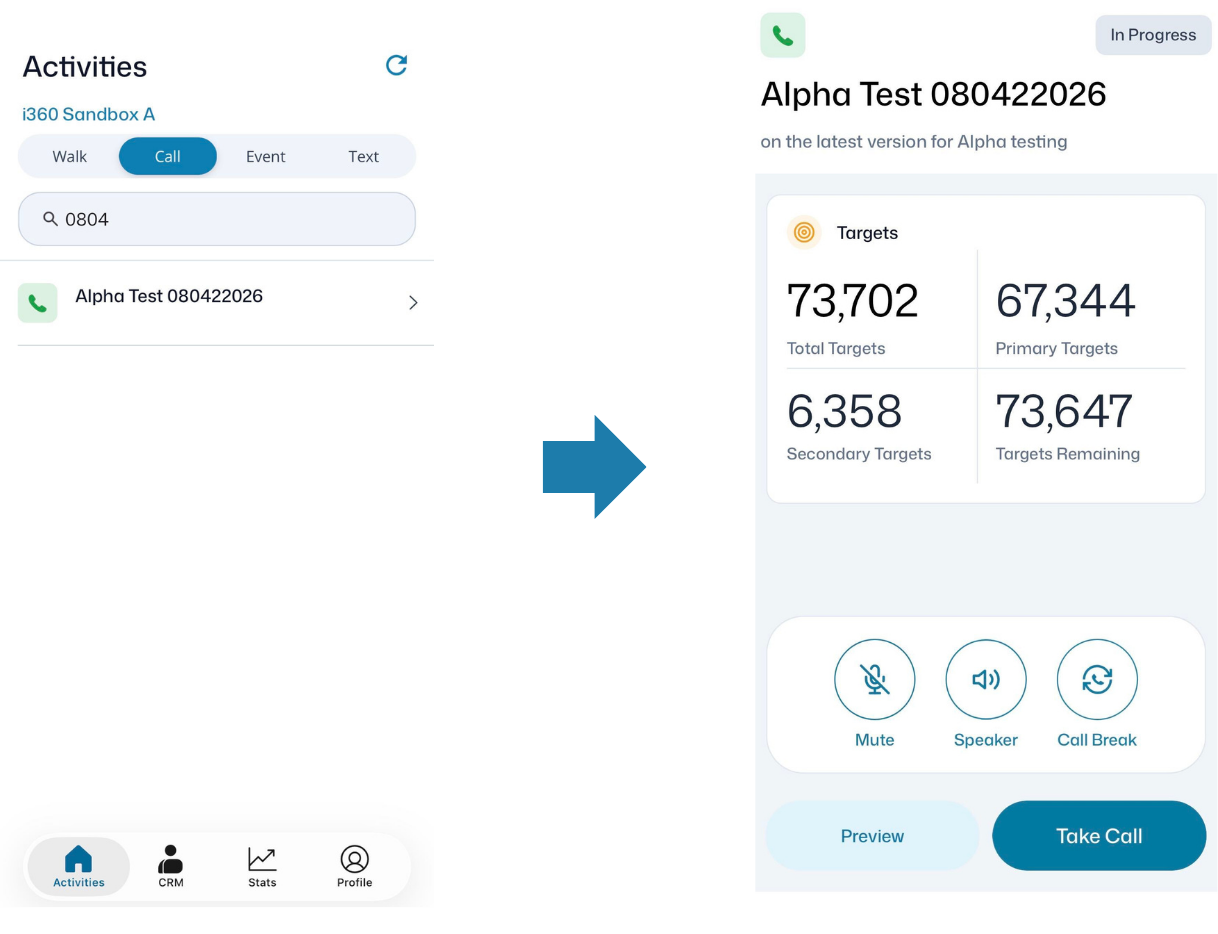
Open your call survey
1
On the Activities screen, tap the Call tab
2
Tap your call survey
3
Tap Preview to read the script first
4
Tap Take Call to start
Mike Minogue for Governor · i360 Call Training
Part 2 · Make calls
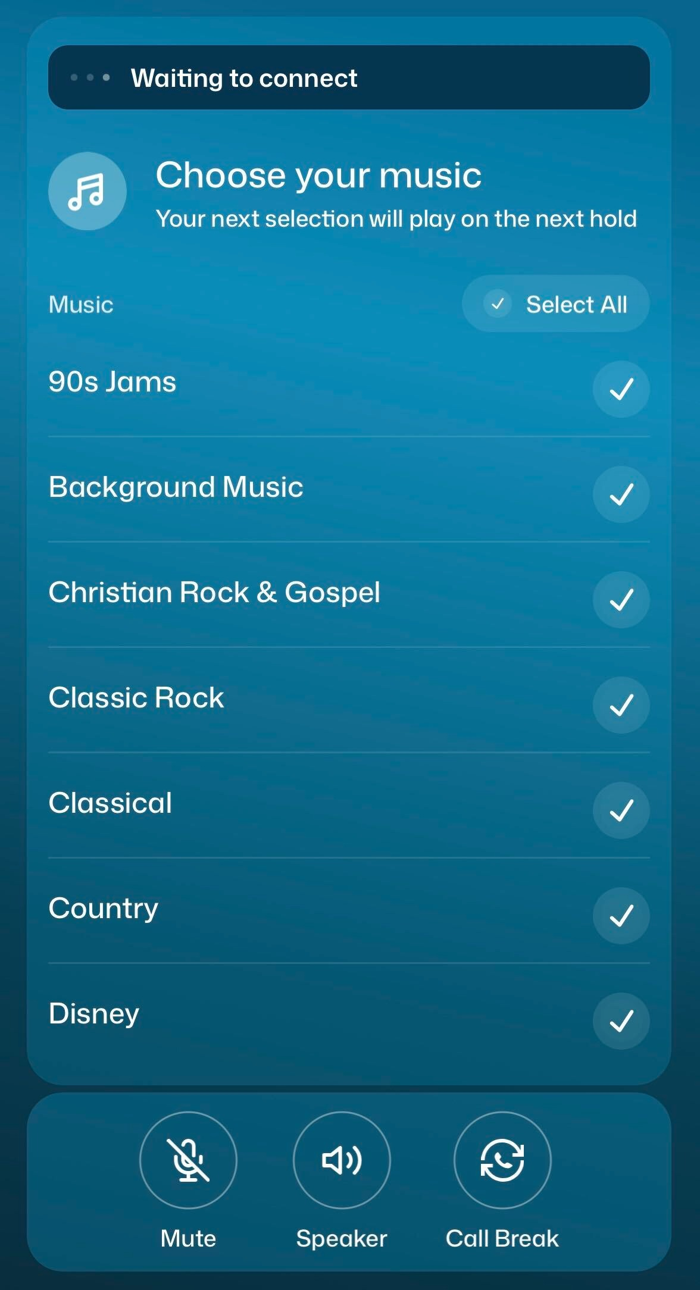
The app dials for you
1
The app does the dialing for you
2
It skips bad numbers and no-answers
3
While you wait, you can pick the hold music
4
Short gaps between calls are normal
Calls come faster when 4 or more people are calling the same survey at the same time.
Mike Minogue for Governor · i360 Call Training
Part 2 · Make calls
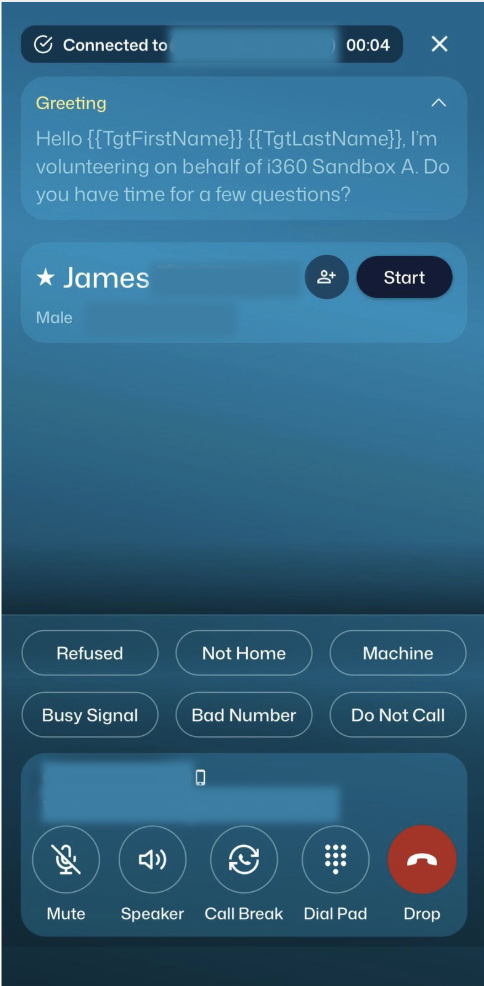
When someone answers
1
The name with a ★ star is who we're hoping to reach
2
Read the greeting at the top of your screen
3
Tap Start and read the script as written
4
Tap their answer, then Next
5
At the end, tap Hang Up & Submit
Mike Minogue for Governor · i360 Call Training
Part 2 · Make calls
Moving through the survey
Next / Previous
Go to the next question, or back one
Skip
The question doesn't apply? Tap Skip
Typing an answer
Tap the box, type what they said, then tap Add Text
Finish
Read the closing, then tap Hang Up & Submit
Mike Minogue for Governor · i360 Call Training
Part 2 · Make calls
Buttons you'll use
Mute
Turns off your microphone
Speaker
Talk without headphones
Call Break
Pause before the next call. Use it for breaks!
Drop
Hangs up the call
Mike Minogue for Governor · i360 Call Training
Part 2 · Make calls
Couldn't do the survey? Pick one:
Refused
They didn't want to talk
Not Home
The person we want isn't there
Machine
Voicemail. Tap Machine and move on to the next call.
Busy Signal
The line was busy
Bad Number
Wrong or disconnected number
Do Not Call
Only if they ask us not to call again
Mike Minogue for Governor · i360 Call Training
Part 2 · Make calls
What the survey covers
The survey is eight short questions. They come up one at a time on your screen with the answer options underneath, so there is nothing to memorise. Read what is on screen and tap what they say.
Some questions will not come up for every voter. If the app moves you along or finishes early, that is normal. Just follow your screen.
The survey
8 short questions
One at a time, on your screen
Mike Minogue for Governor · i360 Call Training
Part 2 · Make calls
Where do they stand?
The app gives you a short list of options. Tap the one that matches what they told you.
Not sure which fits? Pick the closest match. If they would rather not say, the survey ends there. Just thank them for their time.
On your screen
Tap the closest match
There is no wrong answer
Mike Minogue for Governor · i360 Call Training
Part 2 · Make calls
Question 7: want to get involved?
Campaign updates
Door knocking
Yard sign
Making calls
Hosting an event
This is how we find new volunteers, so it's always worth asking! Tap each option they're interested in. They can pick more than one.
Mike Minogue for Governor · i360 Call Training
If they ask
When and how can they vote?
Oct 17–30
Early voting
Vote in person before Election Day
By mail
Mail-in ballot
Request one at sec.state.ma.us
Nov 3
Election Day
Tuesday, November 3
Already have a mail-in ballot? Remind them to turn it in!
Drop it off by 8 PM Tue. Nov 3 (town clerk, drop box, or early voting site, not at the polls) or mail it postmarked by Nov 3 so it arrives by Fri. Nov 6.
Mike Minogue for Governor · i360 Call Training
Part 3 · Get help
Find your RPD
Your Regional Political Director (RPD) sets up your login and call survey, and answers your questions.
| Region | RPD | |
|---|---|---|
| Western MA | Nathan Remillard | nremillard@minogueforma.com |
| Central MA & Suffolk County | David Buckley | dbuckley@minogueforma.com |
| Bristol, Plymouth & the Cape | Ronan Connolly | rconnolly@minogueforma.com |
| North Shore | Nicky Miceli | nmiceli@minogueforma.com |
| MetroWest & Norfolk County | Andrew Zemotel | azemotel@minogueforma.com |
Can’t reach your RPD? Contact our Political Director, Ronan Connolly · rconnolly@minogueforma.com
App not working? Alyssa Mulroy, Data Director · amulroy@minogueforma.com
Mike Minogue for Governor · i360 Call Training
Part 3 · Get help
Need a hand? Reach out.
Alyssa Mulroy
Data Director, Mike Minogue for Governor
amulroy@minogueforma.com
Need a login or a call survey? Contact your Regional Political Director (RPD). Thank you for calling for Mike!